Tips
Headshots for Your Company Website: What Your Team Page Needs
A team page is only as good as its most mismatched photo. Here is what a company website needs from staff photos, the specs your web team will ask for, and how to keep the page current as people come and go.
 Ben LoBue
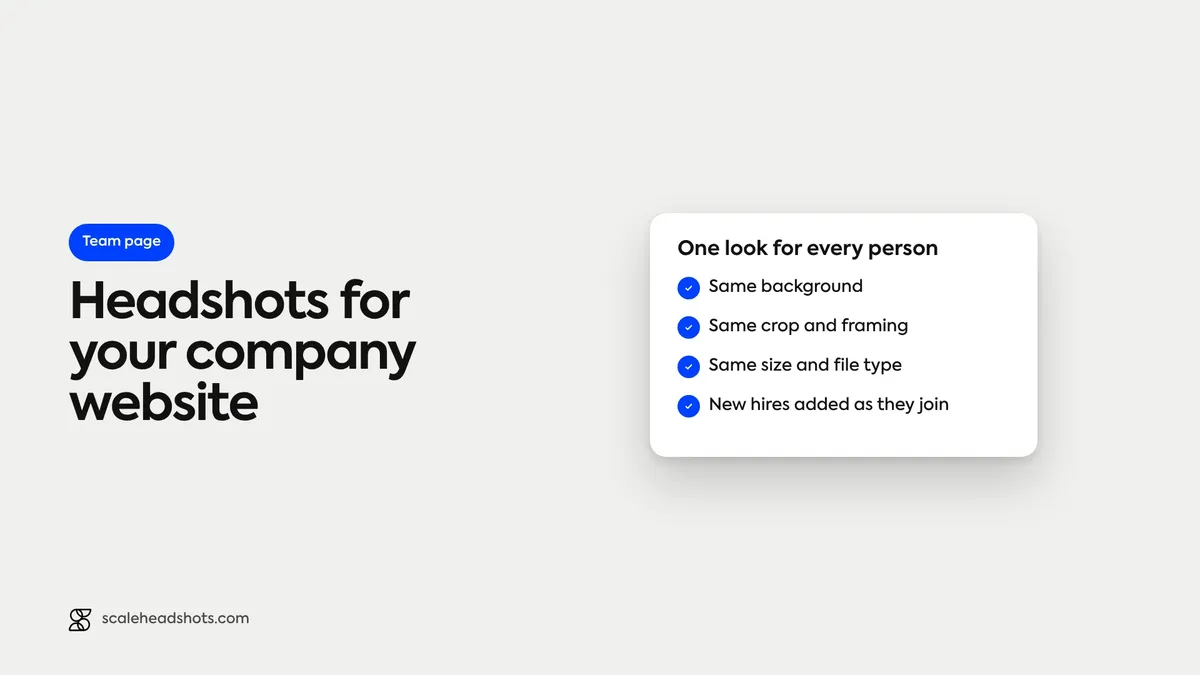
Every team page has one. A grid of tidy, matching photos, and then a tile where the background is a kitchen, the crop is a selfie and the person is half out of frame. The visitor doesn't think "that one was taken at home." They think the company didn't notice.
That's the pattern with staff photos on a company website. The page is small, the faces sit side by side, and every difference in background, framing or size shows. Getting it right isn't about better cameras. It's about deciding the look and the specs once, and having a way to get every person into them, including the people who join next month.
Below: which pages need photos, what to standardize, the file specs your web team will ask for, how to keep the page current, what to do when someone leaves, and how a team gets a matching set without a shoot.
What headshots does a company website need?
Most company websites need one matching headshot per person for the team or About page, shown in a consistent crop, and often a larger version for leadership bios and blog bylines. Choose one background, one framing and one aspect ratio for everyone, keep a high-resolution master of each photo, and export the sizes your web team specifies.
Which pages on a company website need staff photos?
Start with the places a photo will appear, because that decides how many versions you need. A visitor deciding whether to contact a company is looking for the people behind it, and a few pages carry most of that weight.
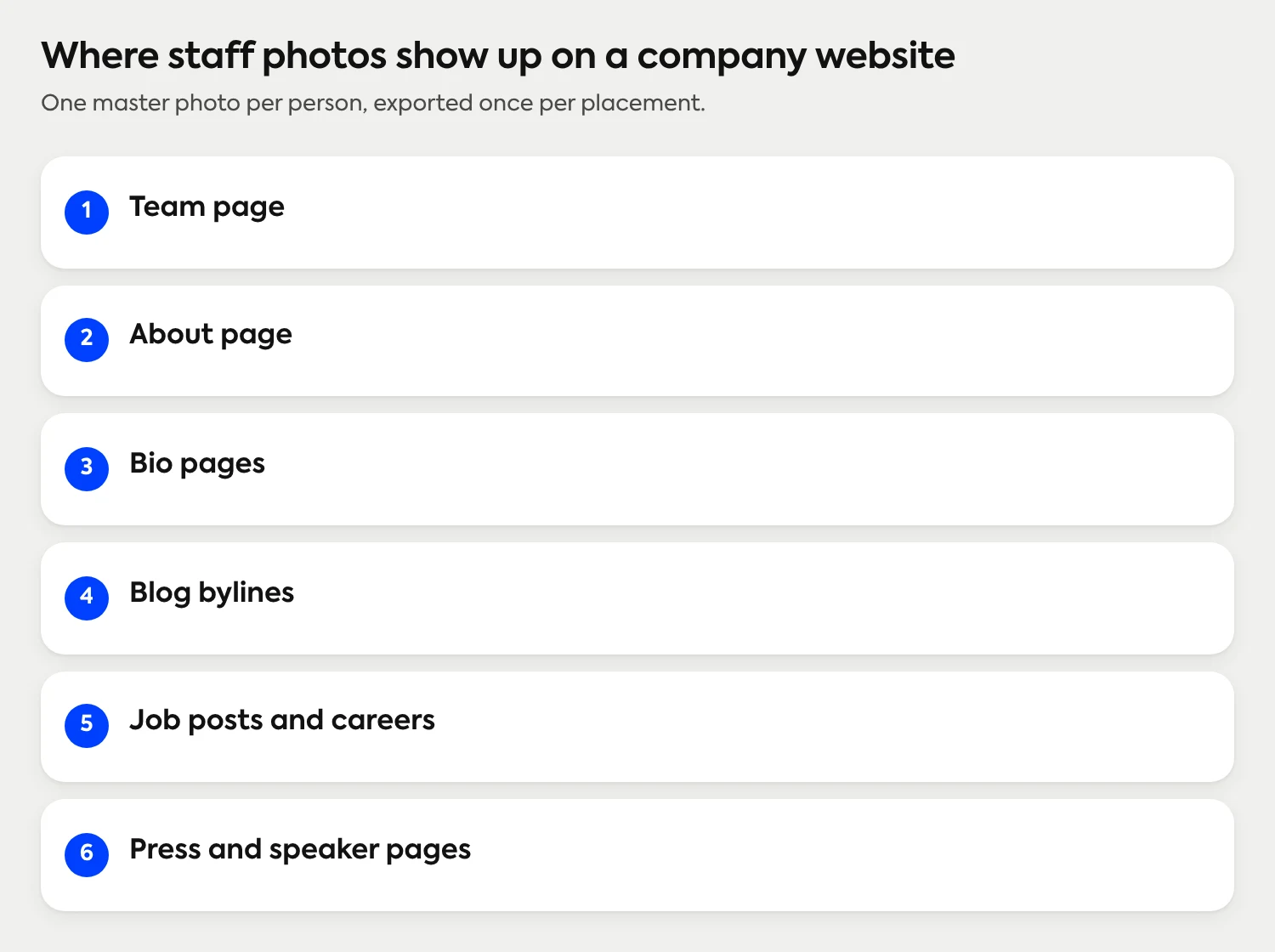
The team page and the About page do the heavy lifting, and they are where mismatches hurt most, because the photos are shown together. Blog bylines and bio pages show one face at a time, so they forgive more, but they still pull from the same files. If you keep one clean master per person, every placement is an export, not a new photo request.
How do you make every team page photo look the same?
Decide five things once and write them down. People can't match a look nobody described.
Background. One color or one clean neutral for everyone. Our guide to choosing a backdrop color covers the options, and the short version for a web page is to pick something that sits well on your page's own background color.
Framing. Whole head and hair in frame with room above, face centered, chest up.
Head size. Faces should fill roughly the same share of the frame, so no tile looks zoomed in next to its neighbors.
Lighting. Even light on the face, from the front or from a window, with no harsh shadow across half of it.
Attire guidance. A sentence or two, not a dress code. Our attire guide is easy to point to.
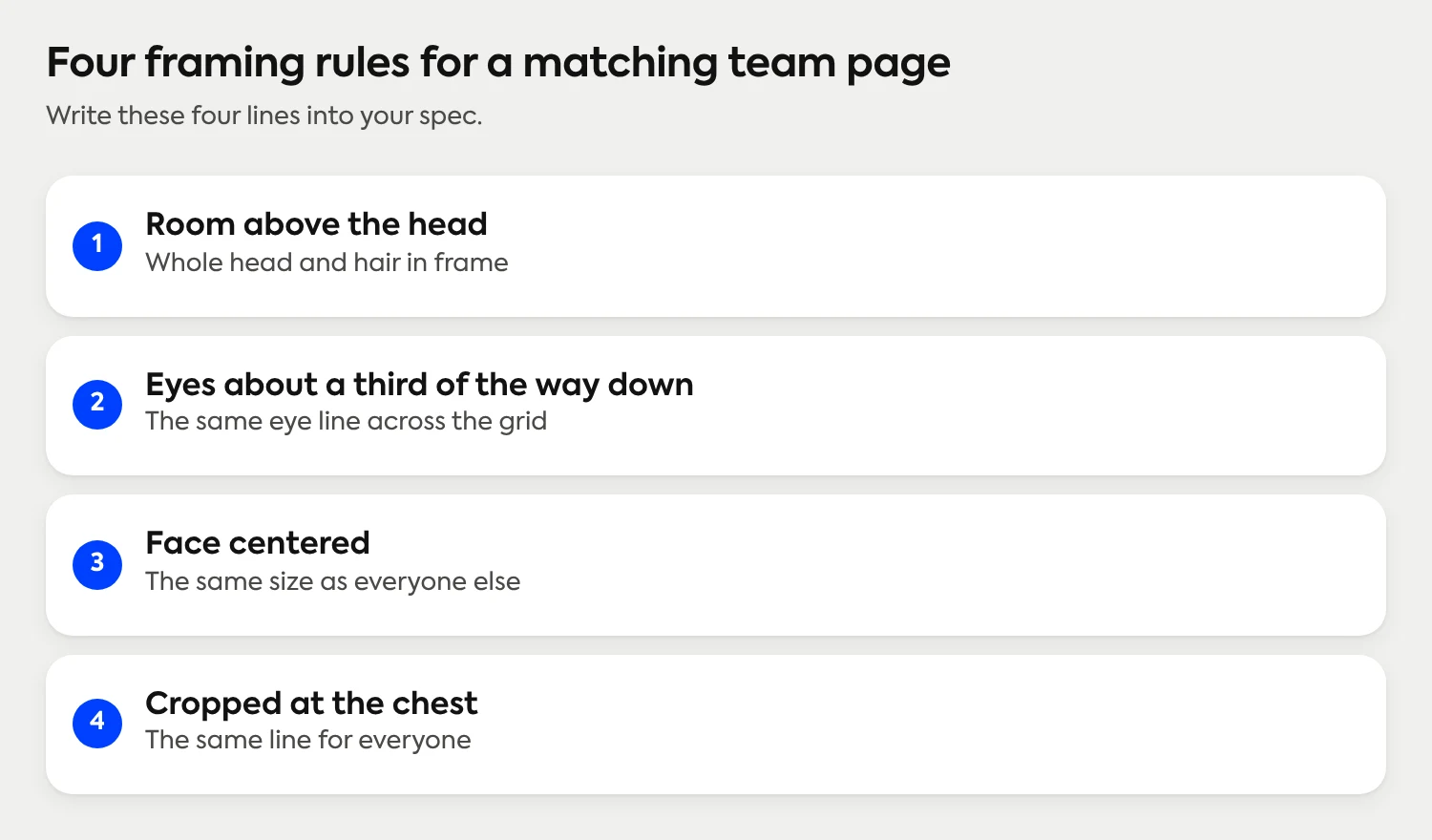
The grid test is simple. Put all the photos on one slide and squint. If any tile jumps out, the spec isn't being followed. The full list of variables worth standardizing lives in the standardization guide, so we won't repeat the policy template here.
What size, crop and file type should staff photos be?
Your web team will ask for specs, and "a headshot" isn't one. The numbers below are practical recommendations, not a standard, because every site template displays photos at its own size. Check the size your team page template shows the photo at, then work backward from it.
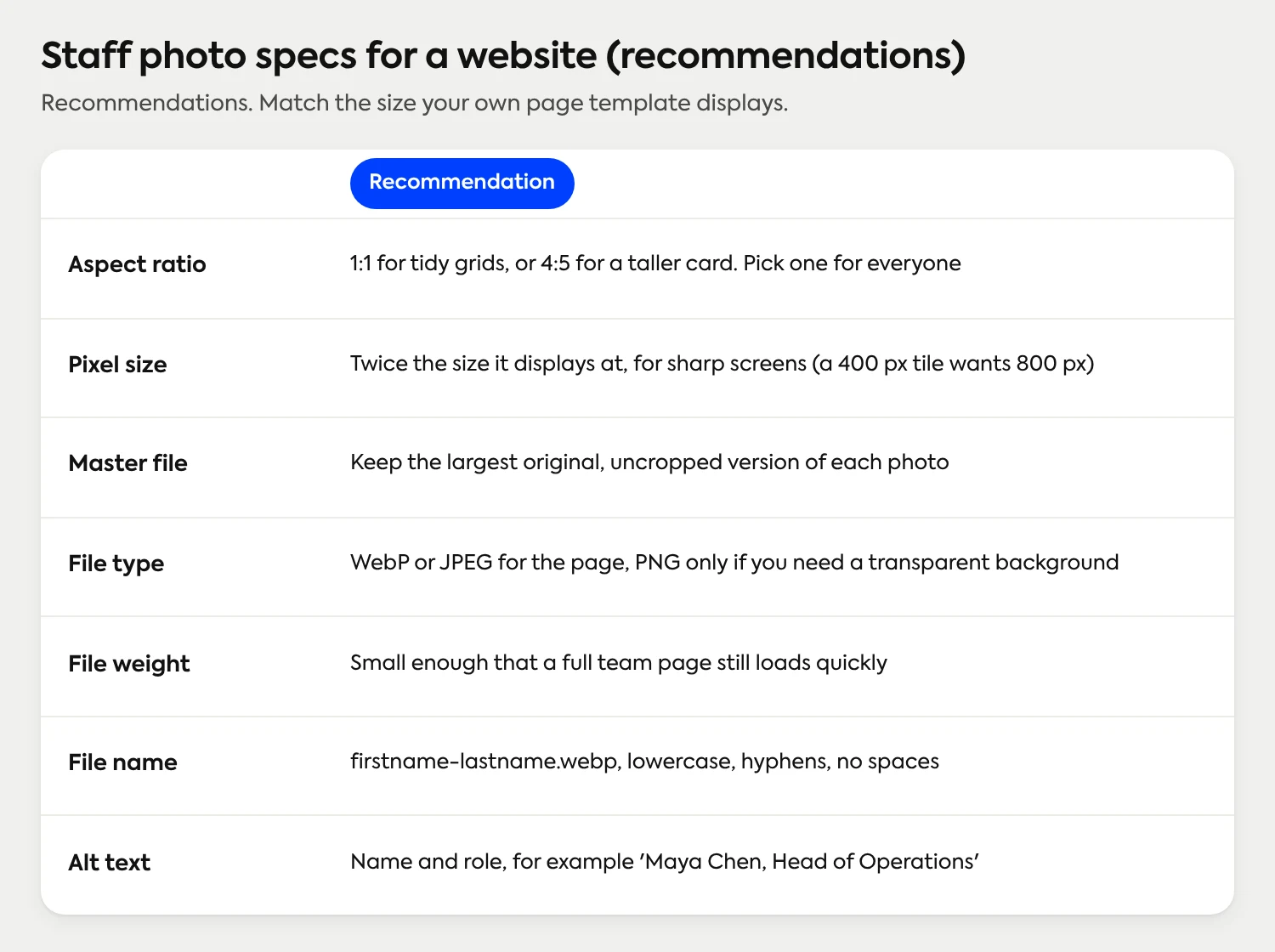
A few notes behind the table:
Pick one aspect ratio and crop everyone to it. Mixed ratios are what produce uneven spacing and stretched faces in a grid.
Size for the screen, not the file. A photo shown 400 pixels wide looks soft on a high-density display unless the file is about twice that. Going far beyond that only makes the page heavier.
Newer formats help. A modern format such as WebP usually keeps a photo sharp at a smaller file size than an older JPEG. Your web team will know what the site supports.
Keep the master. Export a web version for the page and keep the full-resolution original. When the template changes or a new placement appears, you re-export instead of asking everyone for another photo.
Name files for people, not cameras. `IMG_4417.jpg` is how the same person ends up on the page twice.
Places outside the website, such as LinkedIn, have their own specs. For that side, see our LinkedIn walkthrough.
How do you get everyone's photo without a photo day?
Two old ways exist. A photographer comes in for a day, which works when everyone shares one building and one date. Or people send in whatever they have, which is how the kitchen photo gets to the team page. How the two compare, and what to ask before you book is its own article, and the prices are in our guide to what headshots cost.
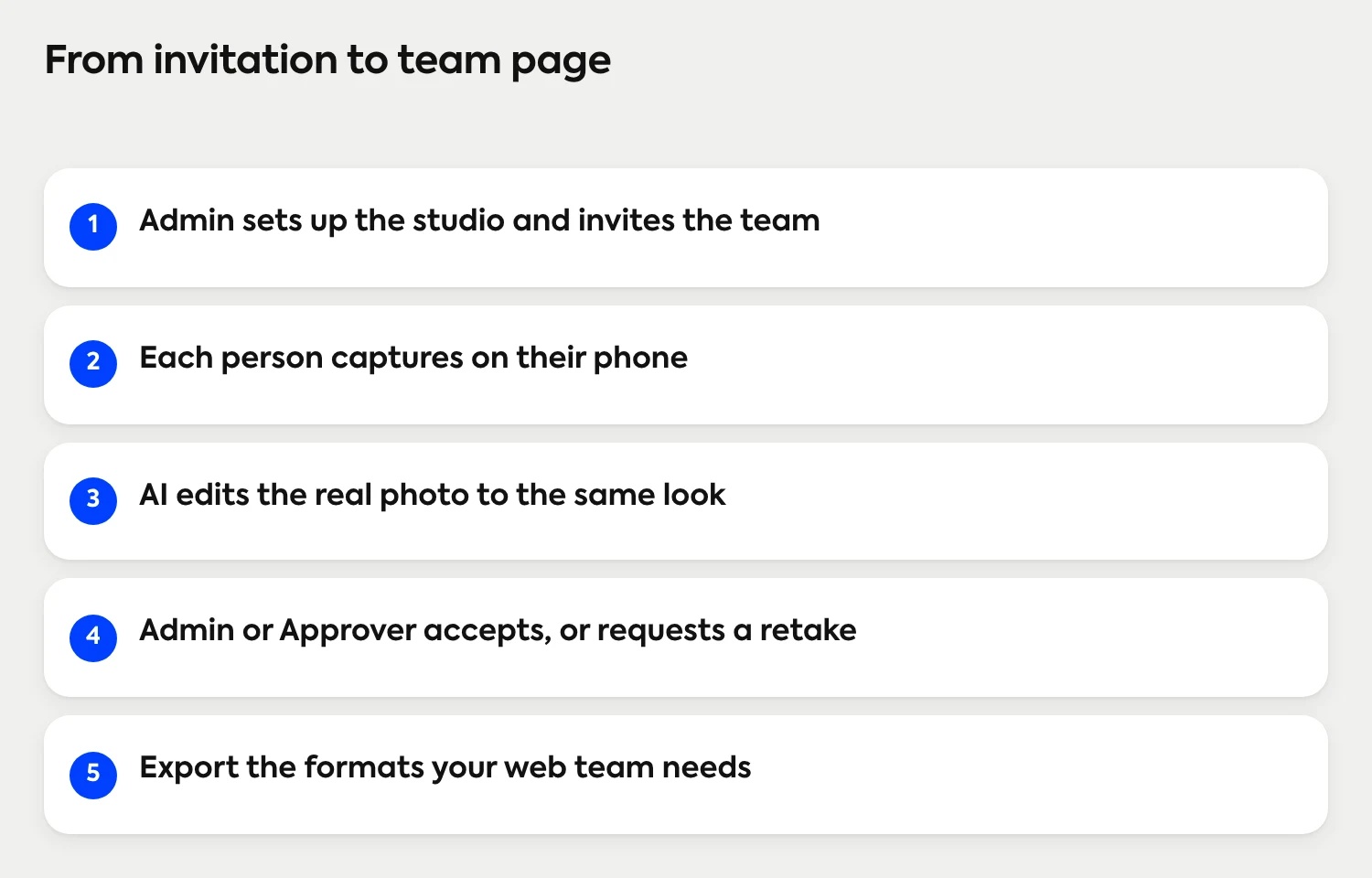
The third way is to let each person capture their own photo on their phone, and have the look applied afterward. In Scale, the admin sets up the studio and invites the team. Each person opens a guided link on their phone, with live lighting feedback and a review-and-retake step before they submit. AI edits the real photo (background, lighting, crop and upscaling), so every headshot is professionally finished automatically. Today, Scale is AI edited, not generated: the photo is the employee, not a synthetic likeness.
How to get consistent headshots for every employee
An admin, or an Approver, accepts each photo or requests a retake, up to four per submission, so a bad angle never reaches the page. See how Approver roles work. The finished headshots can be exported in every format your web team needs, and they are available through the API if the site pulls them automatically. For a whole-company rollout, this page shows how invitations, review and delivery work.
If the instructions are what worry you, paste-ready messages for employees cover the wording.
How do you keep the team page current as people join and leave?
The page is rarely wrong on launch day. It's wrong six months later, when the three people hired since then have photos from three different places, or no photo at all. A team page stays current when updating it is a step in a process, not a project someone has to remember.
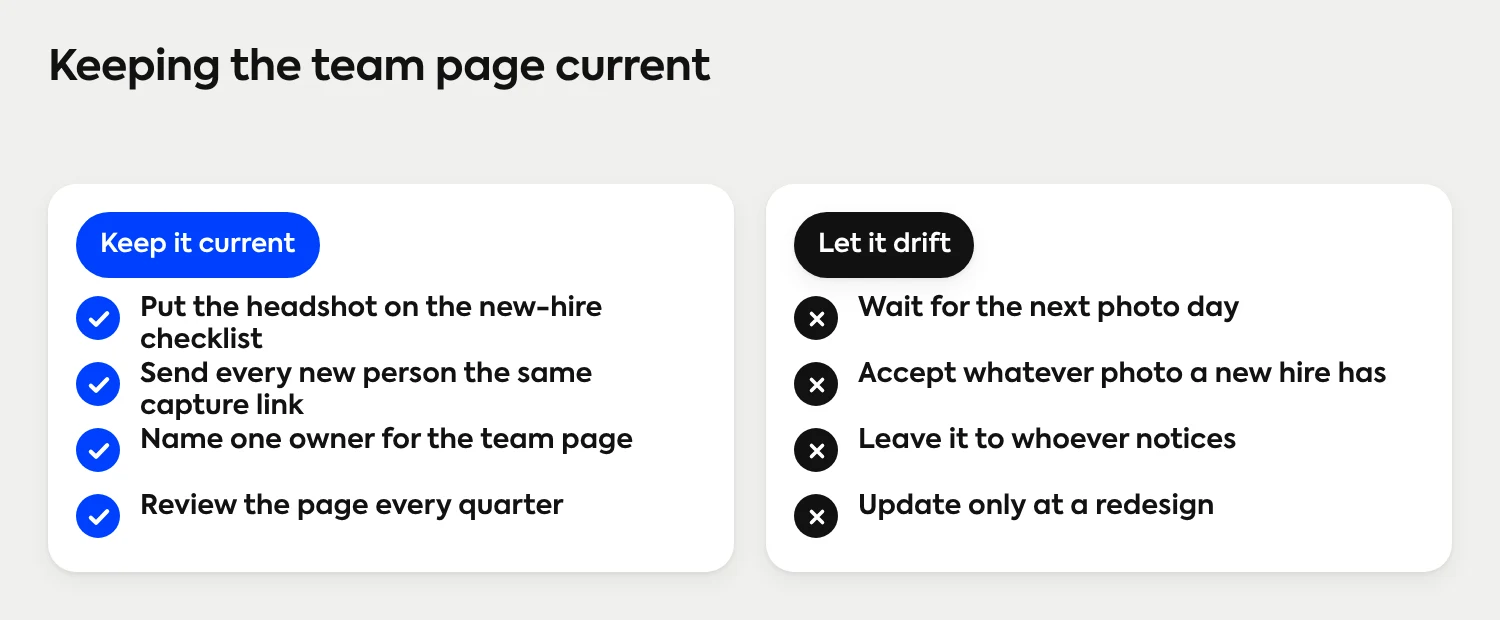
For joiners, the simplest rule is that the headshot goes on the first-week checklist. In Scale, a new hire gets an invitation to the same studio, so the photo comes out matched to everyone already on the page, and studio access runs on credits and retake eligibility rather than start and end dates, so nobody misses a window. A plan for rolling this out across a large team goes further on follow-ups and make-ups.
For remote people, nothing changes. A phone and a window are enough for the capture, which is why the remote team walkthrough is the same flow.
What about consent, and taking photos down when people leave?
A staff photo on a public website is personal data with a face on it, so treat it that way. This is general good practice rather than legal advice, and your company's own policy and local rules come first.
Tell people where the photo will appear before they submit it: team page, bios, bylines, careers page. Surprises are what turn a photo into a complaint.
Let people say no, or ask for an alternative, and agree what shows instead, such as initials or a shared placeholder.
Write down who approved what. A line in the onboarding checklist is enough.
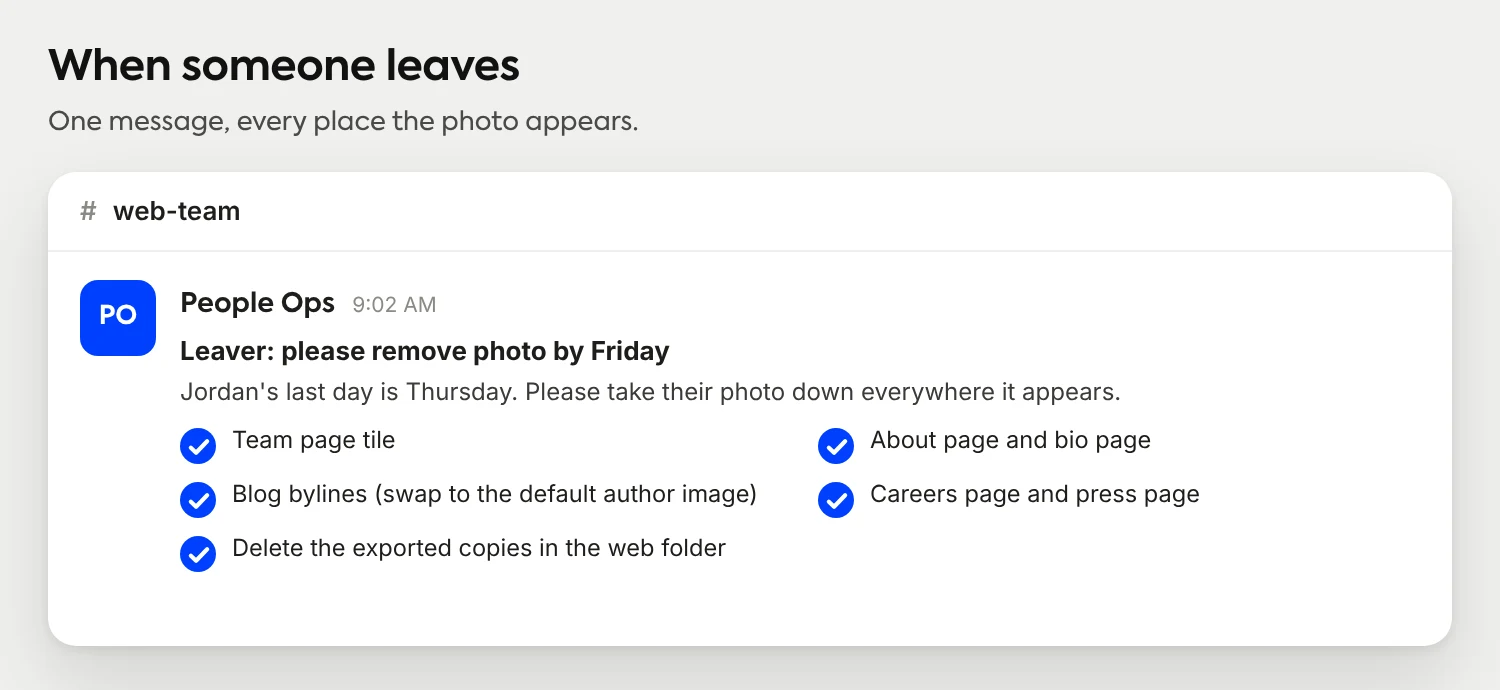
Remove the photo when the person leaves, from the team page, bios and bylines, on a schedule you set in advance. Add the photo to the offboarding checklist next to the email account.
Check the copies. Old exports, cached pages, social posts and the files in your web team's folders are easy to forget. Keep one master per person so there is one place to delete from.
Keeping masters in one place also makes the opposite easy: when someone changes their name or role, you update one record and re-export.
What does it cost to get a matching set?
Pricing follows Save as You Scale: setup in Scale is free, and credits start at $25 per headshot. You get 3 free credits on signup, enough to try the capture yourself and with a colleague before you invite everyone. There are no subscriptions or contracts, each submission includes up to four retakes, and volume pricing lowers the per-person cost for larger teams. The pricing page has the details.
See how a whole-team set comes together
Invite the team, let each person capture on their phone, review every photo, then export in the formats your website needs.
See how it works300 companies already use Scale
Frequently Asked Questions
What size should headshots be for a company website?
There's no single standard, so match the size your team page template displays. A practical recommendation is a 1:1 or 4:5 crop for everyone, exported at about twice the display size for sharp screens, with the full-resolution master kept separately.
Should team page photos be square or portrait?
Either works, as long as every photo uses the same ratio. Square suits tidy grids, and 4:5 suits a taller card. Mixed ratios cause uneven spacing and stretched faces.
What file type is best for staff photos on a website?
WebP or JPEG is the usual choice for photos, and PNG only when you need transparency. Keep the original high-resolution file as your master so you can re-export if the site changes.
How do you make staff photos look consistent when people work in different places?
Set the background, framing, head size and lighting once, then apply them to every photo. With Scale, each person captures on their phone and every photo in the studio gets the same AI edit (background, lighting, framing), so photos taken in different places come out matched.
Do you need permission to put an employee's photo on the company website?
It's good practice to tell people where their photo will appear, ask before publishing, and agree what happens if someone says no. Follow your company's policy and local rules, and take advice where you need it.
When should you remove a former employee's photo from the website?
Set the timing in advance and put it on the offboarding checklist, so the photo comes off the team page, bio and bylines when the person leaves. Check old exports and cached copies too.
How do you get headshots for new hires so the team page stays matched?
Add the headshot to the first-week checklist and send the new hire the same capture invitation as everyone else. The photo is reviewed like any other, so it matches the existing set.
Still have questions? Get in touch and we'll be happy to help!
Get a team page that matches
Setup is free, every employee captures on their own phone, and an admin reviews each headshot. Real photos, AI edited, not generated. Credits start at $25 per headshot, with no subscriptions or contracts.