Product Update
Unedited Headshots for ID Badges: View the Original or Remove AI Enhancement per Submission
Admins can now open the original photo behind any enhanced headshot or remove AI enhancement from a submission. Here is what changes, what stays, and how to match a badge photo to the person at the door.
 Ben LoBue
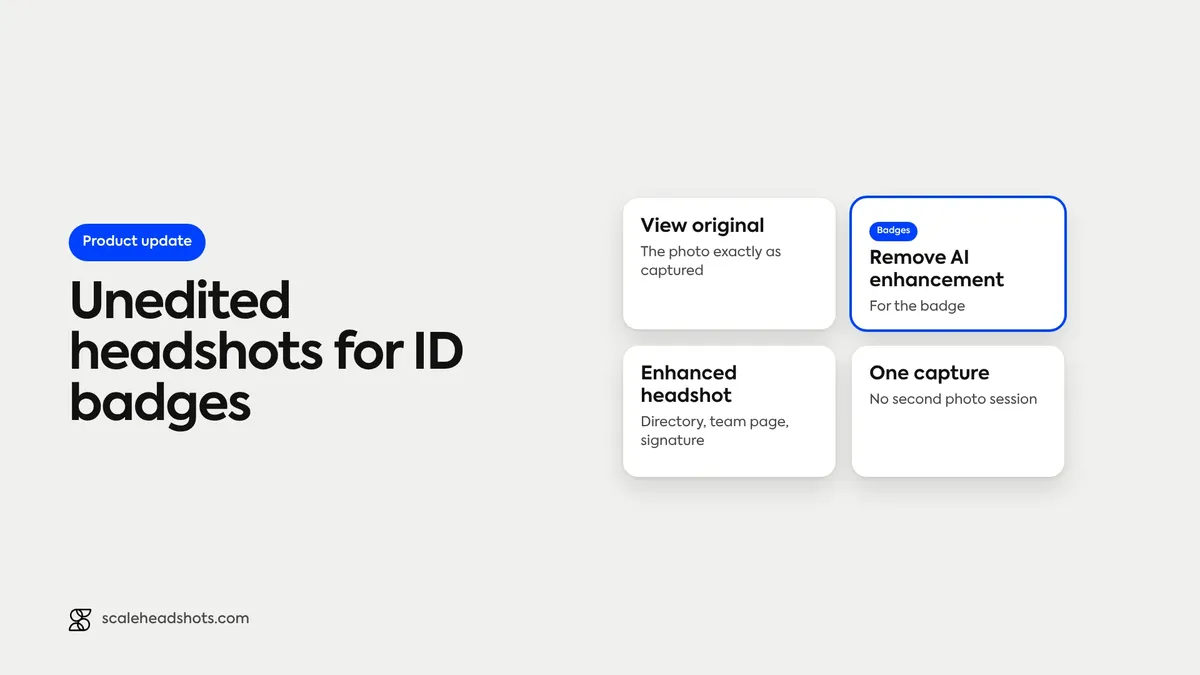
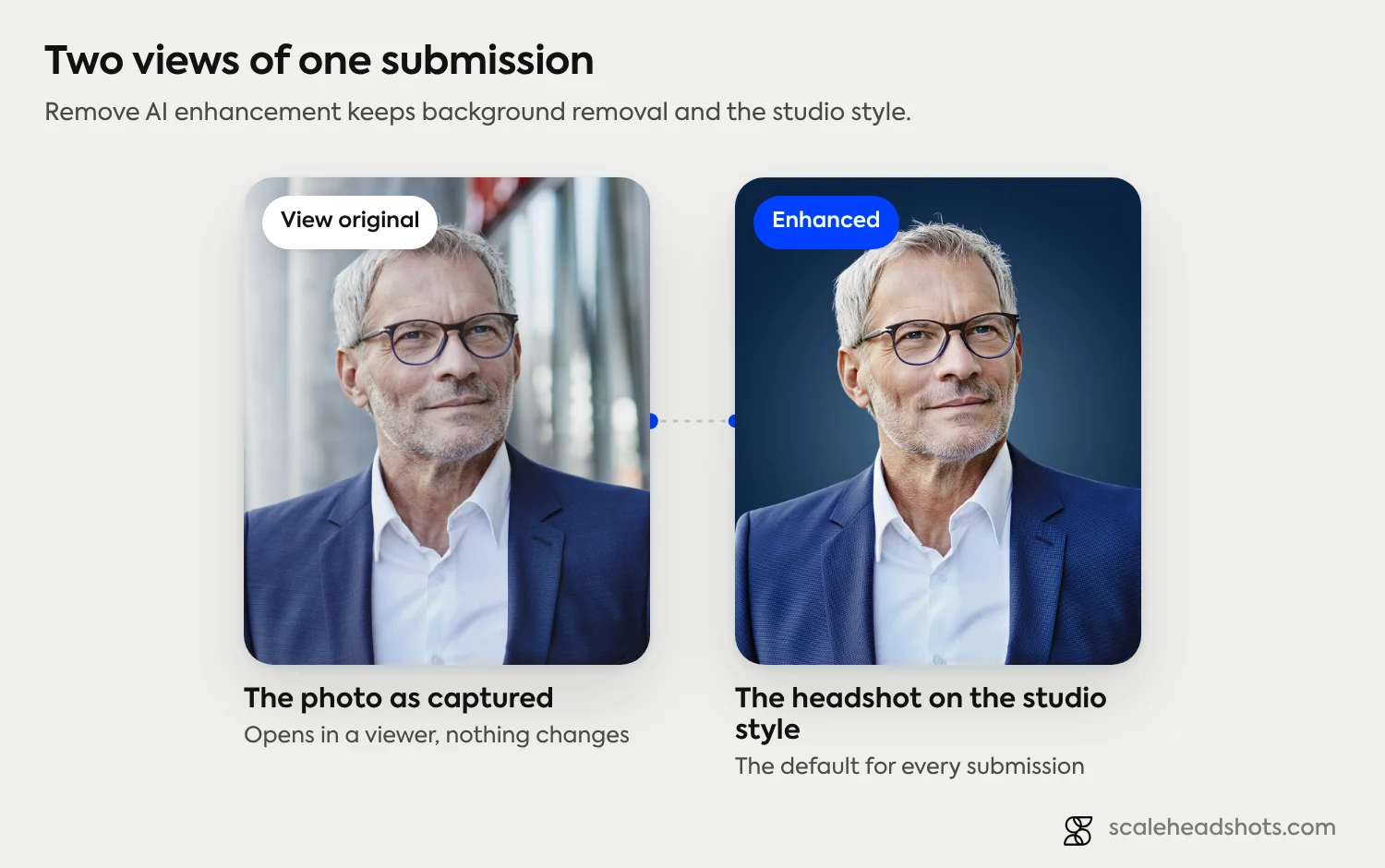
Scale admins can now choose, submission by submission, whether a headshot keeps its AI enhancement. From a submission in the Dashboard, an admin can open the original photo in a viewer with View original, or select Remove AI enhancement so the photo is viewed and downloaded without it. The original is always available to look at, and the choice applies only to the submission it is made on.
The release is aimed at the teams that issue ID and access badges: IT, security and facilities, and the HR teams that hand a badge to every new hire on day one. A directory headshot and a badge photo do different jobs. One is there to look good on a team page. The other is there so a person at a door, a desk or a front gate can be matched to the card on their chest. Some badge and security policies ask for the plainest photo possible, and that choice belongs to the program that issues the badge.
Can an ID badge use an unedited headshot from Scale?
Yes. In the Dashboard, an admin can select View original to see the raw photo, or Remove AI enhancement on a submission. Removal is permanent for that submission, keeps background removal and the studio's style, and the photo is then viewed and downloaded without enhancement. The option appears only when the studio has AI enabled and the photo is already enhanced.
What can an admin do with an enhanced submission?
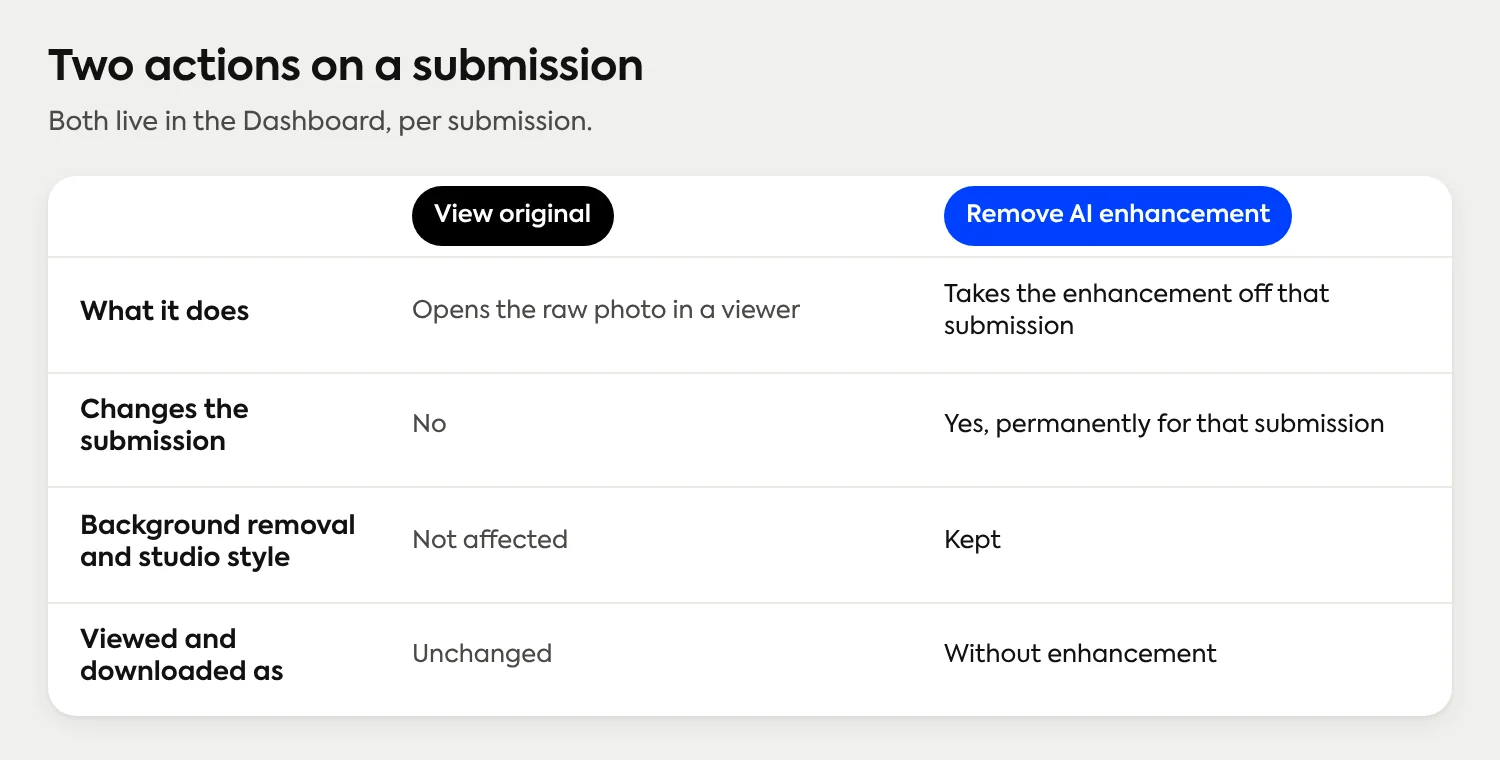
Two things, both on a submission in the Dashboard.
View original. The raw photo the person captured opens in a viewer. Nothing changes. It is a way to check what came in before deciding anything, and it stays available after enhancement is removed.
Remove AI enhancement. The enhancement comes off that submission, while background removal and the studio's style stay. This is one-way: once removed for a submission, it stays removed for that submission.
Scale's enhancement edits the photo, never the person: lighting, sharpness, upscaling and background. The option exists because some policies call for the plainest photo available, and the admin is the person who knows which policy applies. It is a choice about a policy, not a correction. For the general difference between edits to the photo and edits to the person, see how editing differs from retouching.
What changes when you remove AI enhancement, and what stays?
The removal is narrow on purpose. Scale takes away the enhancement and leaves the rest of the studio's setup in place.
Kept: background removal and the studio's style. A badge photo still sits on the studio's background, so a set of badges still looks like one program.
Changed: the submission is viewed and downloaded without enhancement, so the lighting, sharpness and upscaling work is no longer applied to that photo.
Permanent, per submission: there is no restore on that submission. The original photo stays viewable afterward.
Per person: future submissions still get enhancement unless the studio-level AI setting is turned off. Removing it on one person's photo does not change anyone else's.
The option shows up only where it applies. It appears when the studio has AI enabled and the photo has already been enhanced. A studio that runs with the AI setting off has nothing to remove.
Why do some ID badges call for an unedited photo?
A badge photo is a verification tool. The person reading it is comparing a small printed image to a face, usually in a few seconds, often on a phone or a reader screen. That shapes what organizations ask for. Published employer photo guidance tends to ask for a plain background, a clear and in-focus image, and sometimes states in so many words that the photo must not be altered by software. Policies differ, and so do their definitions of "altered."
That is the case for leaving the decision with the admin. A facilities lead issuing access cards for a warehouse and an HR lead printing lanyards for a new-hire class may be working from different rules. Scale does not claim to meet any government or specific security standard, and a badge program should check its own policy. What the release does is let the policy owner pick the plainest version for the people it applies to, without asking those people to come back for a second photo.
What does a good ID badge photo need?
These are general points that hold across most badge programs. Check them against your own policy first.
A plain background. Nothing behind the person that competes with the face.
A full, front-facing face. Eyes open and visible, hair off the eyes, camera at eye level.
Nothing covering the face. No sunglasses, no tinted lenses, no hats unless a religious or medical need applies. Clear prescription glasses are generally fine when the eyes are visible without glare.
Even light. Soft light from the front, with no strong shadows across the face and no window behind the person.
A current photo. One that looks like the person today, not three hairstyles ago. A retake when someone changes their appearance keeps the badge reliable.
A consistent frame. The same head-and-shoulders crop for everyone, so a wall of badges or a visitor screen reads evenly.
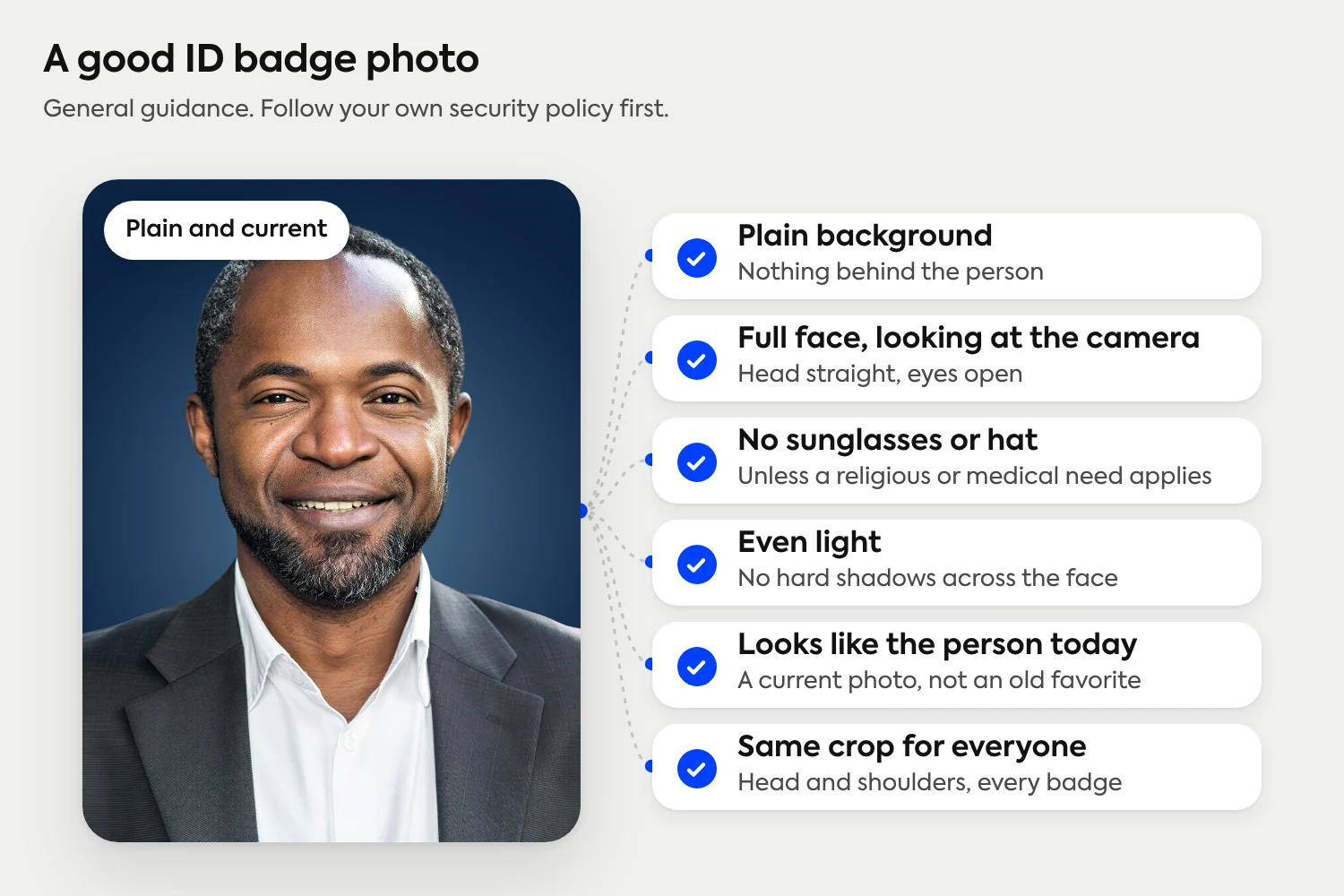
Most of this is decided at capture. Studio 2, Scale's guided capture experience, gives live guidance and lighting feedback and lets the person review and retake before they submit. The admin then reviews each submission, with up to four retakes per submission, and can send a person back if the photo does not meet the badge policy. Our introduction to Studio 2 covers the capture flow in full.
How do IT, security and facilities teams use this?
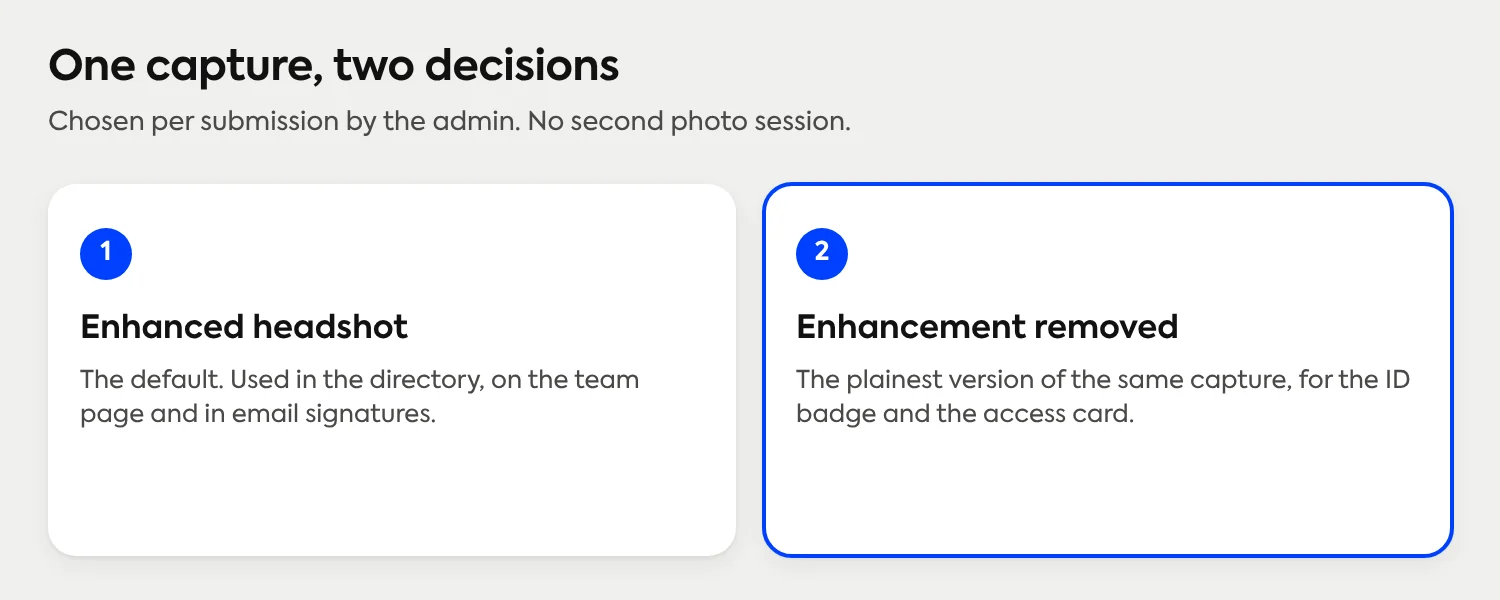
The pattern is one capture and two decisions, made in the Dashboard.
Set the studio up once. The admin invites the team, and each person captures their own photo on their phone through a guided link. Before the rollout, share what to tell employees before they take their photo.
Review as usual. Each headshot lands in the Dashboard as Review, then moves to Accepted or Rejected.
Decide per submission. For the people whose badge policy calls for the plainest photo, select Remove AI enhancement. Everyone else keeps the enhanced headshot for the directory, the email signature and the team page.
Pull the files. Download each photo in the format the badge printer or access system needs. Teams that move headshots into other systems automatically can start with the developer documentation.
The outcome is a badge photo that matches the person at the door, from the same capture that fed the rest of the program, with no second session to schedule and nobody asked to come back for another photo.
For teams still choosing a look for the enhanced set, our guide to backgrounds that photograph well and the post on choosing one modern look for a team cover the other half of the program.
Where does this fit with the rest of Scale?
It is one of the controls an admin has over a headshot program, alongside review, retakes and roles. The platform is free to set up, credits start at $25 per headshot, every new account gets 3 free credits, and there are no subscriptions or contracts. Volume pricing lowers the per-person cost for larger teams, and the pricing page has the current detail.
Scale is AI edited, not generated: the headshot is always the real photo the person took. This release gives the admin a way to choose how much of the edit a particular photo keeps. The full list of capabilities is on the features page, and how a headshot program runs for a whole company shows the rest of the rollout, from the CEO to the newest hire. To see finished results, browse the examples.
Frequently Asked Questions
Can I get an unedited headshot for an ID badge?
Yes. An admin can open the original photo with View original, or use Remove AI enhancement on a submission so the photo is viewed and downloaded without enhancement. Background removal and the studio's style stay in place.
Can I undo Remove AI enhancement?
No. Removal is permanent for that submission. The original photo remains viewable afterward.
Does removing AI enhancement affect other people's photos?
No. It applies only to the submission it is used on. Future submissions still get enhancement unless the studio-level AI setting is turned off.
Why can't I see Remove AI enhancement in my Dashboard?
The option appears only when the studio has AI enabled and the photo has already been enhanced. If the studio has AI turned off, or the photo has not been enhanced, there is nothing to remove.
Does Scale edit the person in the photo?
No. Scale's enhancement edits the photo: lighting, sharpness, upscaling and background. It does not smooth skin, reshape a face or retouch a person.
Does an unedited photo meet my security standard?
Scale does not claim compliance with any government or specific security standard. Check your own badge policy for background, framing and alteration rules, then choose the version that fits it.
Still have questions? Get in touch and we'll be happy to help!
Make one capture work for the directory and the badge
Your team captures real photos on their own phones, an admin reviews each one, and each submission can keep its enhancement or go out plain for badges. Free to set up, credits from $25 per headshot, and 3 free credits to try it.